¶ Annual updates in SnapPlus V3
SnapPlus V3 offers new time saving ways to make updates to your nutrient management plan, modifying more than one field’s data at a time. These features can be accessed by selecting the Records and Updates page, and then the Update Crops (or Update Applications) tabs on the page.
¶ Update crops
The update crop tab has two main aspects, the toolbar and the data table:

¶ Toolbar features
- Set the crop year: Every year up to and including the present planning year is available in this dropdown. Future years cannot be modified on this page.
- Undo: This will undo a modification made to one crop's data. Save a snapshot for more comprehensive backup.
- Update multiple rows: This feature allows user to modify more than one property on more than one crop's data a time.
- Management templates: replace saved data for one or more crops in a given plan year using a management template. This feature is limited to management templates with only one crop year of crop data included.
- Confirm crops: This will toggle the value in the Confirmed? column of all crops on display in the data table. Once a crop has been confirmed, it cannot be modified anywhere unless the confirmed status is removed. When a crop is confirmed, its applications will be available for editing on the update applications tab.
Saving a snapshot is a good precaution to take before making changes to different parts of the plan at once. It can be difficult to track exactly what has changed when several updates have been applied.
¶ Update applications
Application data on multiple fields can also be modified simultaneously using the Update Applications tab. Data will only display if crops have been confirmed on the Update Crops tab. Nutrient application data will only be visible and modifiable for any applications planned on crops that have been confirmed.

As with the crop tab, there is a toolbar at the top of the page with some controls to make the update process easier. Notice there are a few additional features when working with applications:
- Nutrient applications can be deleted from this page. Be careful when deleting data as all data on display will be removed from the plan.
- Nutrient applications can be replaced with nutrient system applications.
- Confirm applications will toggle the value in the “Applied?” column.
- Grazing applications are also visible on the annual update page, but they cannot be modified or deleted, apart from being confirmed as applied.
¶ Replacing applications with a nutrient system
The Update Applications tab includes the ability to replace one or more planned nutrient applications with applications defined as part of a nutrient system:
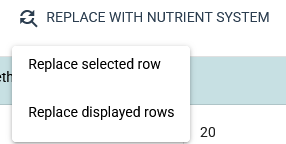
On choosing one of these options, application data will be removed and replaced by nutrient system data. Replacing applications with nutrient system data can be undone (as long as it's undone before navigating away from the page), but it's still a good idea to save a snapshot of the plan's state before changing a lot of data at once.